Difference between revisions of "Translations:Expense reports startup/62/en"

From Marathon Documentation
Jump to: navigation, search
(Importing a new version from external source)
 
Line 1: Line 1:
{{ExpandImage|GL-ERS-EN-Bild11.png}} {{ExpandImage|GEN-ERS-EN-Bild12.png}}
+
{{ExpandImage|GL-ERS-EN-Bild11.png}} {{ExpandImage|GL-ERS-EN-Bild12.png}}


{|class=mandeflist
 
{|class=mandeflist

Latest revision as of 15:02, 25 March 2026
Information about message (contribute)
This message has no documentation. If you know where or how this message is used, you can help other translators by adding documentation to this message.
Message definition (Expense reports startup)
{{ExpandImage|GL-ERS-EN-Bild11.png}}  {{ExpandImage|GL-ERS-EN-Bild12.png}}
   
{|class=mandeflist
!Date
|The date will be set to today's date by default. If the purchase date is different from today's date, it can be changed here. 
|-
!Attachment
|Use the Add Image button to import images or open your mobile camera and take a photo of the physical receipt.
|-
!Type
|Select expense type.
|-
!Corporate card
|If the user has a corporate card, this column is displayed. Here, it is specified whether the expense was made with the card or not. 
|-
!Quantity
|Fill in quantity
|- 
!Amount XXX
|Total amount in the company’s base currency.
|-
!VAT XXX
|Total amount in the company’s base currency.
|-
!Project
|If the expense relates to project purchases, specify the project 
|- 
!Purchase
|If the expense relates to project purchases, specify the purchase code
|-
!Text
|Fill in information according to instructions or write a general text that describes the expense. 
|}
Translation{{ExpandImage|GL-ERS-EN-Bild11.png}}  {{ExpandImage|GL-ERS-EN-Bild12.png}}
   
{|class=mandeflist
!Date
|The date will be set to today's date by default. If the purchase date is different from today's date, it can be changed here. 
|-
!Attachment
|Use the Add Image button to import images or open your mobile camera and take a photo of the physical receipt.
|-
!Type
|Select expense type.
|-
!Corporate card
|If the user has a corporate card, this column is displayed. Here, it is specified whether the expense was made with the card or not. 
|-
!Quantity
|Fill in quantity
|- 
!Amount XXX
|Total amount in the company’s base currency.
|-
!VAT XXX
|Total amount in the company’s base currency.
|-
!Project
|If the expense relates to project purchases, specify the project 
|- 
!Purchase
|If the expense relates to project purchases, specify the purchase code
|-
!Text
|Fill in information according to instructions or write a general text that describes the expense. 
|}

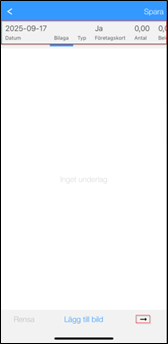
Date The date will be set to today's date by default. If the purchase date is different from today's date, it can be changed here.
Attachment Use the Add Image button to import images or open your mobile camera and take a photo of the physical receipt.
Type Select expense type.
Corporate card If the user has a corporate card, this column is displayed. Here, it is specified whether the expense was made with the card or not.
Quantity Fill in quantity
Amount XXX Total amount in the company’s base currency.
VAT XXX Total amount in the company’s base currency.
Project If the expense relates to project purchases, specify the project
Purchase If the expense relates to project purchases, specify the purchase code
Text Fill in information according to instructions or write a general text that describes the expense.